 AI Chat Toolsfor Chrome, Firefox & Edge
How to delete ChatGPT history
Short answerTo delete one chat, open its ⋯ menu in the ChatGPT sidebar and choose Delete. To clear everything, use Delete all chats in ChatGPT's settings. ChatGPT can't select several chats at once; a free extension like AI Chat Tools adds that, so you can delete a chosen set and keep the rest.
How do I delete a single ChatGPT chat?
- Hover over the chat in the ChatGPT sidebar and click the ⋯ menu.
- Choose Delete and confirm.
That’s built in and works on the web, desktop and mobile apps.
How do I delete many ChatGPT chats at once?
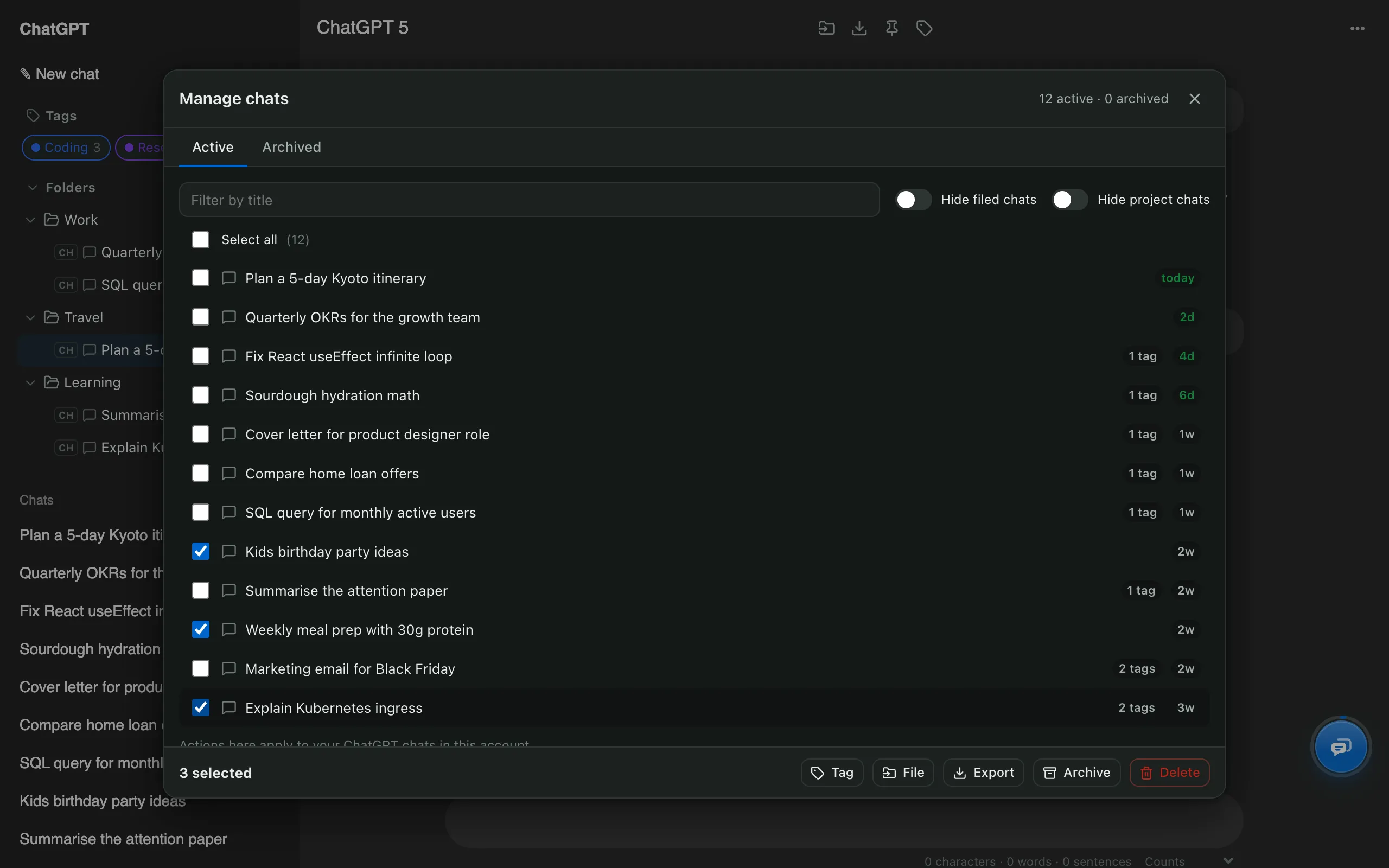
ChatGPT has no multi-select, so deleting twenty chats means twenty trips through the ⋯ menu. The free AI Chat Tools extension adds a Manage chats window:
- Press Ctrl/⌘ + K on chatgpt.com and open Manage chats.
- Filter by title, or switch on Hide filed chats so chats in your folders are protected.
- Tick the chats, or press Select all.
- Press Delete and confirm.
How do I delete all ChatGPT history?
ChatGPT’s settings include Delete all chats, which removes every conversation at once. Before using it, export anything you may need later; deleted chats can’t be restored by ChatGPT.
Which method should I use?
| Goal | Best method | Reversible? |
|---|---|---|
| Remove one chat | ChatGPT ⋯ menu → Delete | No |
| Remove a chosen set | AI Chat Tools → Manage chats | 30-day private copy |
| Hide without deleting | Archive (ChatGPT or Manage chats) | Yes |
| Remove everything | ChatGPT settings → Delete all chats | No |
What doesn’t deleting chats remove?
Deleting conversations doesn’t clear ChatGPT’s memory, your custom instructions, or files inside Projects. Each of those has its own setting.